Chapter 3 - Media
Users Guide
SoNET Powered Websites
Introduction
Thank You for using this SoNET Powered Website. By now you have figured out
that your new website is all about providing you the most bang for your buck, so
lets get into all the good things you can do with it. First off, you can upload
Pictures, Video's and even Mp3 files so others can not only read what you have to
say but see and hear it too. Your new site can even have its own members and allow
you to build your fan club or email list and send messages to all your members.
You can change whether it is public or private as well as change how it looks in
just a few seconds without losing any of your information. In addition to that you
can add, edit, spell-check and customize all the text on your website in multiple
languages. You can insert pictures into your front page text, write a Blog and even
post classifieds ads on your site. You can even get comments and ratings on all
the content you post and those who post can follow the conversation from anywhere.
Additionally you can post journal notes, make public announcements across the entire
network and communicate with other site owners on the network via email messaging.
Your site even has its own user management and each member of your site gets a profile.
The custom contact forms and invitations mean that you can build your own hub of
activity and communicate with all your members, generate leads for your business
and more. PayPal support means you can even sell stuff on your new website. These
and many more features are yours when you own a SoNET powered website. There is
nothing, that compares to your SoNET powered website at anywhere near the price
you are paying :) So tell a friend!
Chapter 3. Media (Audio, Video & Pictures)
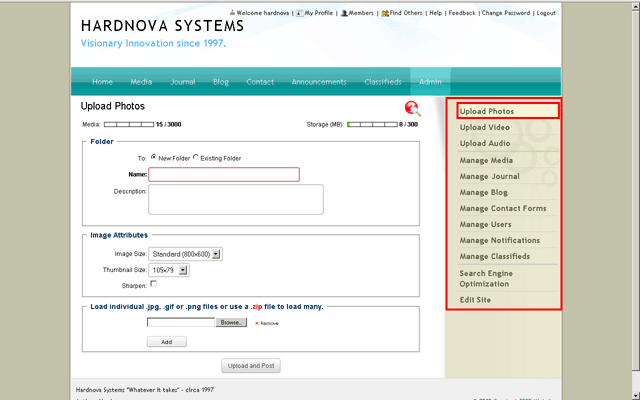
The UPLOAD PHOTO control
The first thing you will see once you have finished the Title & Description
wiz or anytime you log into the Admin area of your website is the UPLOAD PHOTO area.
You can access it at anytime as well by clicking the control in the Admin area.
NOTE: The AMOUNT of media files you can store with your current account
is displayed at the top as both a number/total number and STORAGE
used/total.
The control always assumes you want to make a NEW FOLDER, so if you don't then choose
one you have already made from the drop down list by clicking EXISTING FOLDER.
To
use the upload from .zip feature (super useful if you have lots
of pictures to load into the same folder) you will need to zip up your
pics before hand then simply browse to that zipped file and press the
UPLOAD AND POST button when you are ready. They will get unzipped and
resized to whatever IMAGE SIZE you selected and whatever THUMBNAIL SIZE
you selected in whatever FOLDER you named or chose. If you don't use the
.zip feature then you can still add multiple pics, you just have to add
more upload locations by clicking the ADD button. Click the REMOVE
control to get rid of any locations that are extra, if you clicked ADD
too many times.
The UPLOAD VIDEO control is
similar to the photo control but you can not add a .zip file of videos and you will
have the option of telling your audience how long the video is (on some networks
this may be turned off)

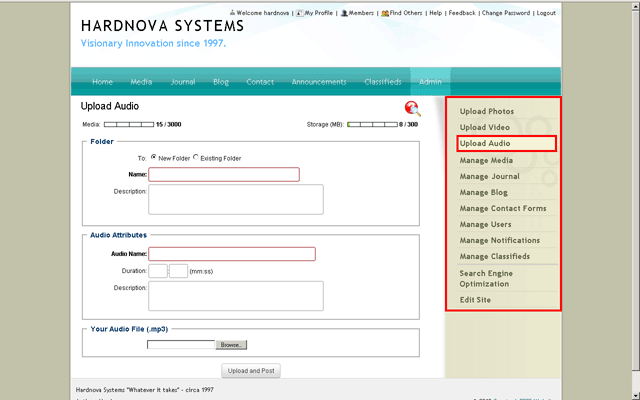
The UPLOAD AUDIO control is
similar to the upload video control in that it also allows you declare how long
a file will play and you can NOT load .zipped files.
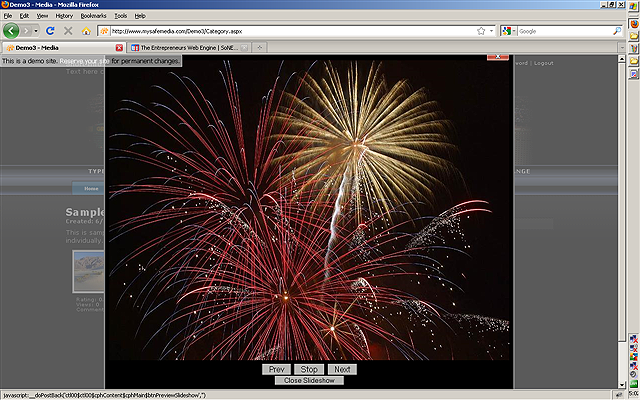
Here is what your uploaded media files look to your websites visitors.
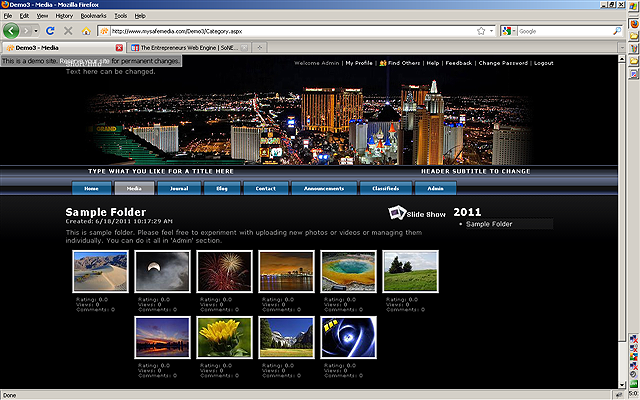
The SLIDE SHOW control (has a
picture of little slides next to it) control up at the top of the thumb nailed pics
will start an automatic slideshow
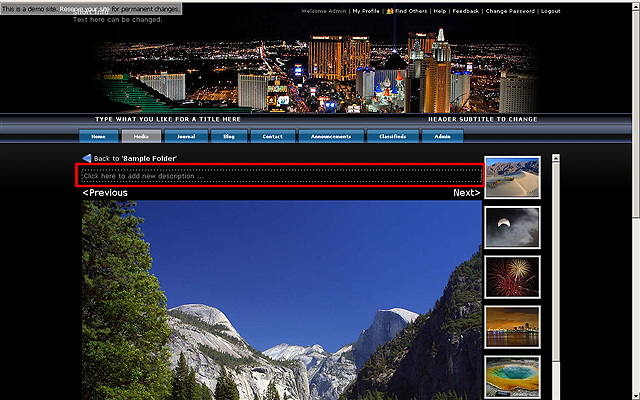
Adding MEDIA DESCRIPTIONS
When you are logged in, you can edit the description for your media files by simply
clicking the photo then clicking the area above the photo and typing what you like.
Visitors can not edit this area.
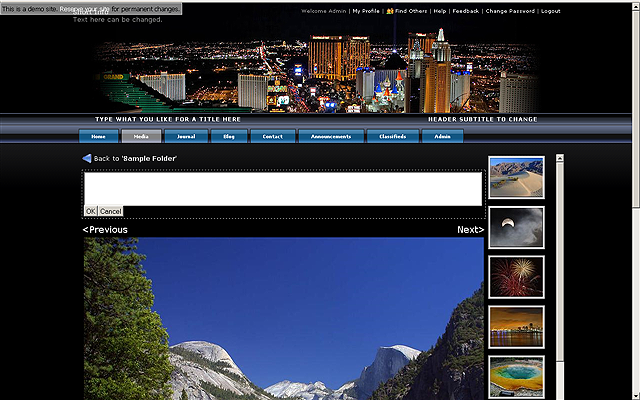
To save the description, click the OK button.
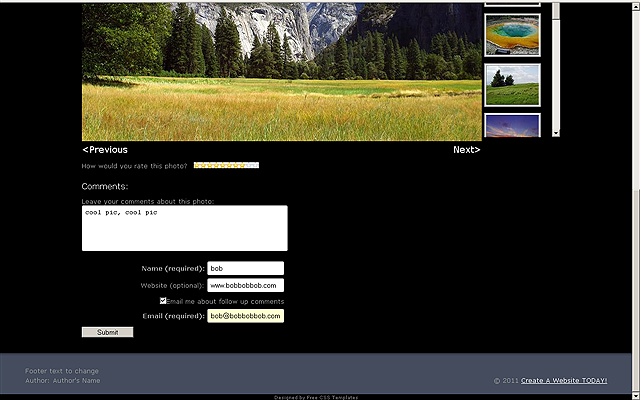
How Commenting,
Rating and Conversation Tracking works. The checkbox "EMAIL
ME ABOUT FOLLOW UP COMMENT" will enable the visitor to add an email address
and get notified when someone else replies to a comment they made. Ordinarily visitors
can add a name and even a backlink to their website (if it is enabled on the network,
some network owners do not allow backlinks). To COMMENT, visitors simply type a
comment and click the SUBMIT button. To Rate they simply run the mouse over the desired
rating star or number and click, the rating is then automatically saved.
To Manage Media click the control on the
Admin control area on the side of the screen (usually the right side but that depends
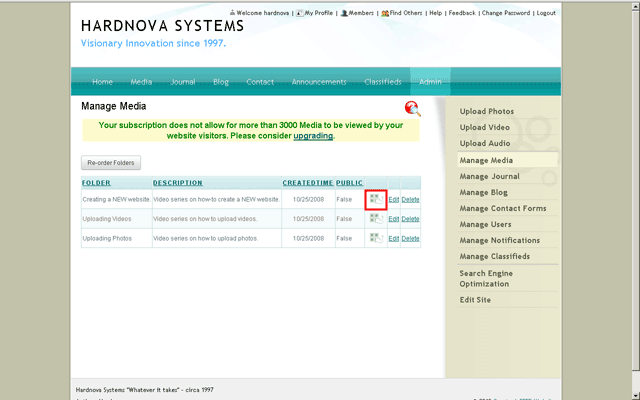
on the template your site is using at the time). To edit your albums in Drag N' Drop
mode click the little picture window icon to the left of Edit.
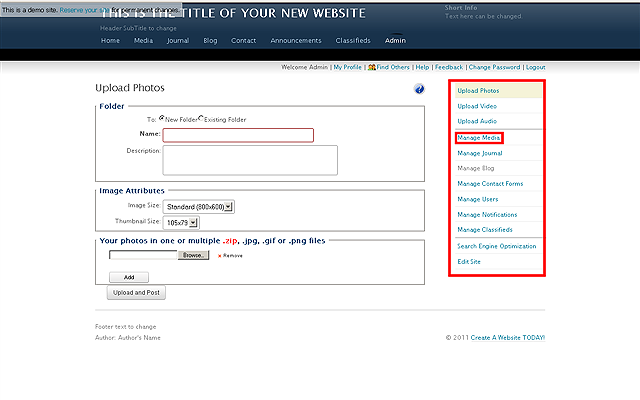
Once the MANAGE MEDIA control is clicked, the screen below shows. To enter Drag N' Drop editing mode click the area
in the red box below.
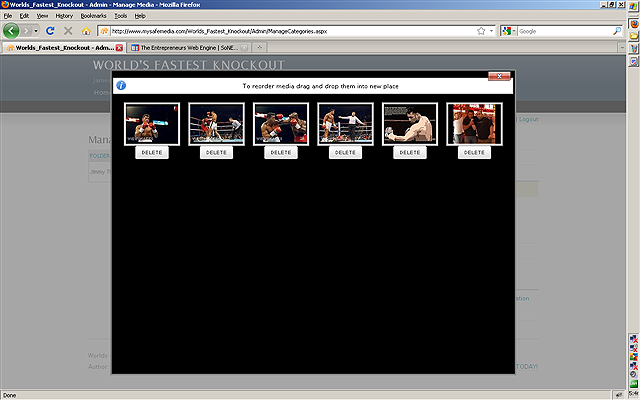
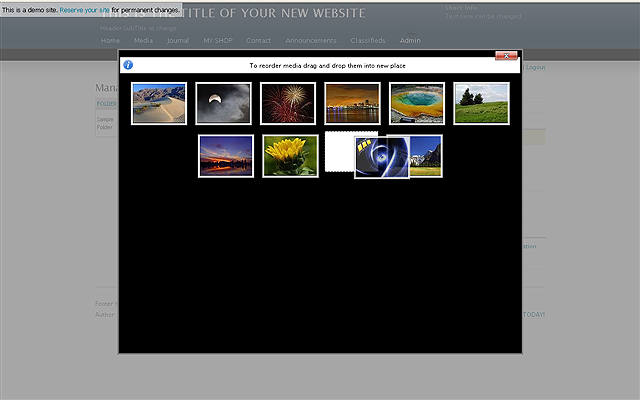
Now you can drag whatever media you want to move and re-order your album anyway
you like it or Delete anything you want.
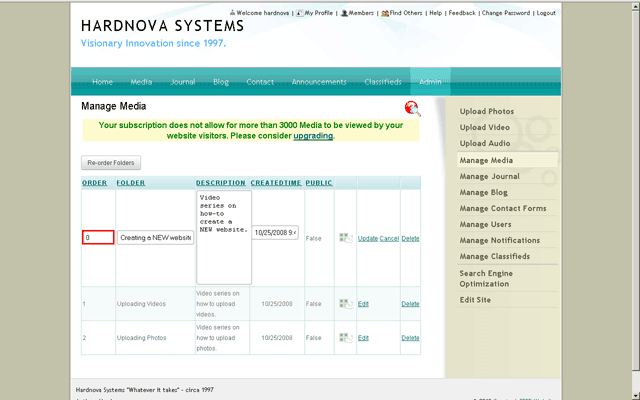
Reorder Albums
Clicking the RE-ORDER FOLDERS button lets you change which folders are
at the top of your media list.
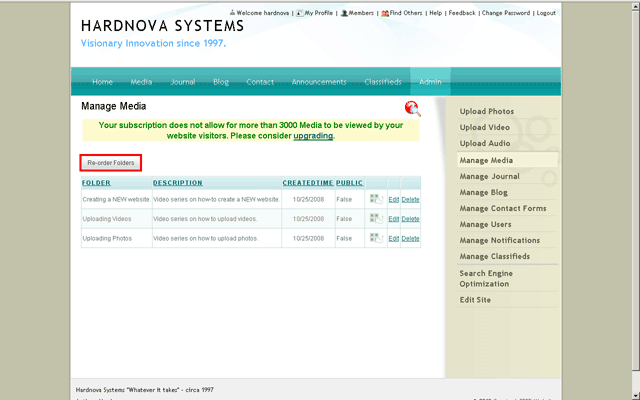
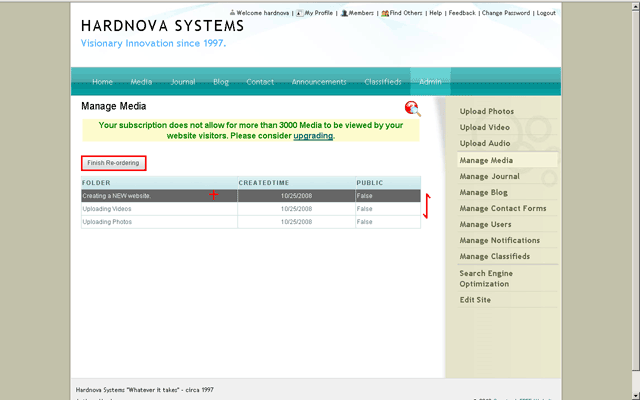
So if you want a particular folder in a certain spot on the list your
visitors see, then this button will let you drag it into place. Click
the FINISH RE-ORDERING button once done.
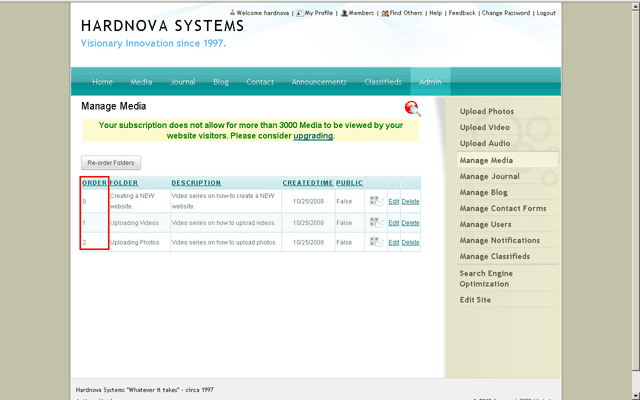
Once you have used the RE-ORDER FOLDERS button you will notice a new
column named ORDER.
Album Details
Clicking the EDIT instead of the little picture window will allow you edit the entire
album details or delete it. You can even change the date the album was created on
to move it up or down. The albums will be automatically grouped by years to help
you keep track of when you took that great shot at that great event...ahh fun memories
are the best :)
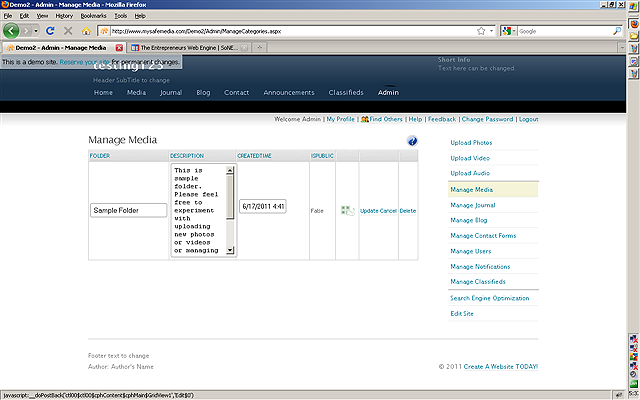
IF you have used the RE-ORDER button, clicking EDIT will now allow you
to change the order manually as well. Just change the number.