Chapter 11 - Extras
Users Guide
SoNET Powered Websites
Introduction
Thank You for using this SoNET Powered Website. By now you have figured out
that your new website is all about providing you the most bang for your buck, so
lets get into all the good things you can do with it. First off, you can upload
Pictures, Video's and even Mp3 files so others can not only read what you have to
say but see and hear it too. Your new site can even have its own members and allow
you to build your fan club or email list and send messages to all your members.
You can change whether it is public or private as well as change how it looks in
just a few seconds without losing any of your information. In addition to that you
can add, edit, spell-check and customize all the text on your website in multiple
languages. You can insert pictures into your front page text, write a Blog and even
post classifieds ads on your site. You can even get comments and ratings on all
the content you post and those who post can follow the conversation from anywhere.
Additionally you can post journal notes, make public announcements across the entire
network and communicate with other site owners on the network via email messaging.
Your site even has its own user management and each member of your site gets a profile.
The custom contact forms and invitations mean that you can build your own hub of
activity and communicate with all your members, generate leads for your business
and more. PayPal support means you can even sell stuff on your new website. These
and many more features are yours when you own a SoNET powered website. There is
nothing, that compares to your SoNET powered website at anywhere near the price
you are paying :) So tell a friend!
Chapter 11. Extras - Widgets & Chat
Widgets
There are many additional features thay are available for your website via
the use of Widgets. Think of these as little programs that dd cool features to your
website without really being part of your site, which means you can add them change
them and take them away whenever you like. Some widgets are more like mini-applications,
an example of which is the Calendar which lets you create a schedule and keep track
of appointments and can also show your websites visitors this information so they
can keep track of the schedule as well. Some other widgets are for adding content
to your site like the Online Photo Widget which can help you quickly build up a
photo packed website for any topic you type into it. Try them all and see which
ones you like. For the sake of illustration we will show you the functionality of
the CALENDAR WIDGET so you can see how a typical Widget is can be used to add more
functionality to your website.
To add a Widget, please select it from the ADD MORE CONTENT
list which is available on your Home Page (once you have logged in).
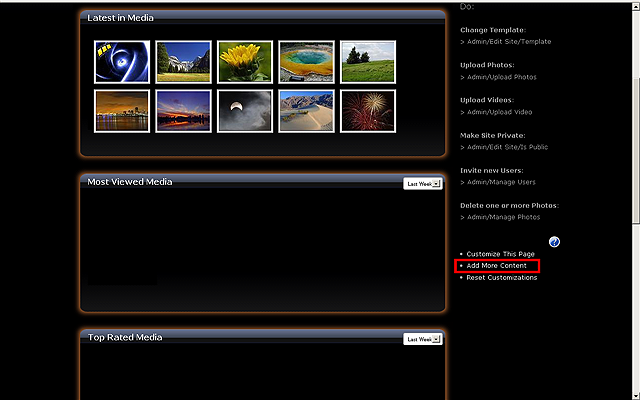
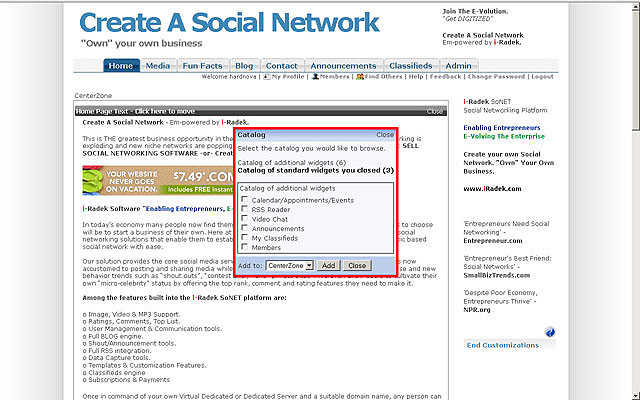
Once you click the control you will see the following screen which shows the currently
available Widget catalog. Click the CheckBox next to the Widget you want to add
to your Home Page. Click the ADD button and then the CLOSE button once you are done.
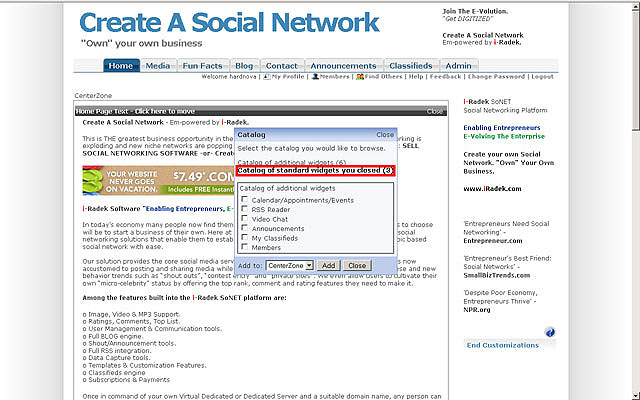
There are 2 list that you need to pay attention to when adding or removing Widgets
and those are the CATALOG OF ADDITIONAL WIDGETS
(ones that are NOT by default open on your website and the number of different types
available) and the CATALOG OF STANDARD WIDGETS YOU CLOSED (ones that ARE open to
your website by default and the number of different types available).
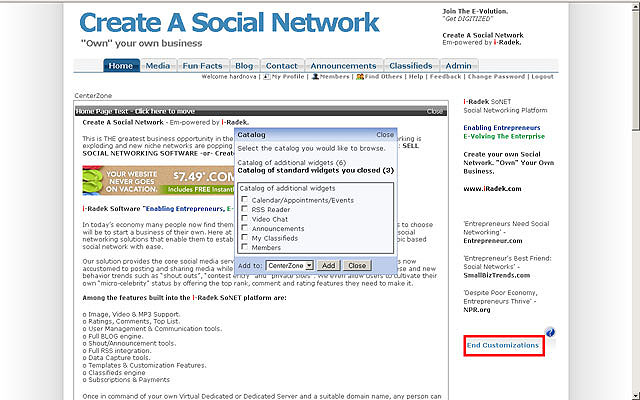
Once you are done adding or deleting Widgets to your site you will need to click
the END CUSTOMIZATIONS control link to go back
to normal editing mode.
VIDEO Chat
One of the most powerful and fun features of your website comes to you in the form
of VIDEO CHAT (available on your CONTACT PAGE or as a Widget). That means that you have the
capability to see who you are talking to without downloading or configuring anything.
Cool, free and beats whatever you use now. Try it.
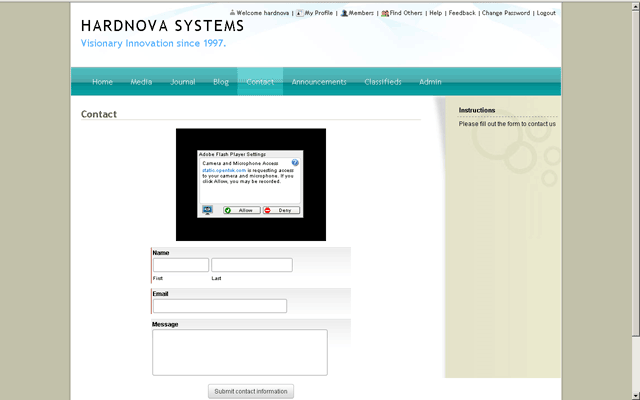
To use the instant VIDEO CHAT (available on some networks) you simply click the OPEN
VIDEO CHAT link next to the Camera icon on top of the CONTACT FORM to begin.
Next click the ALLOW button. Your microphone will be turned on and you
camera will start.
NOTE: You will need the latest version of FLASH for your browser.
Click the link to get the latest version and install it.
NOTE: Your camera and microphone need to actually be in working
order to use this feature.
The next screen will show you what your camera is broadcasting.
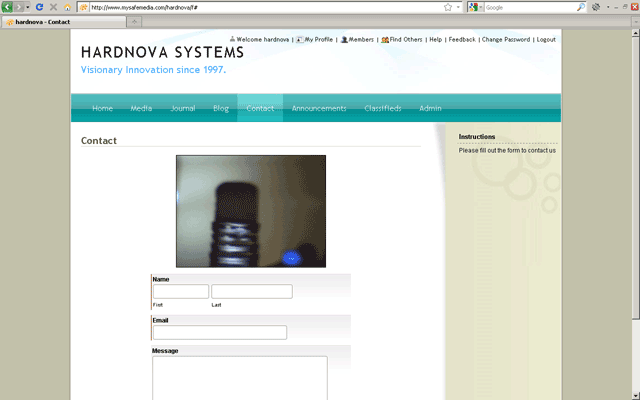
Woot! Instant Video Chat, with Text and Sound and a LOT of other features. NO DOWNLOAD
OR INSTALL NEEDED! We will let you figure out how many people can connect to the
same session (lets just say "more than two"). As others join,
they will show up in another viewing window.
