Users Guide
SoNET Powered Websites
Introduction
Thank You for using this SoNET Powered Website. By now you have figured out
that your new website is all about providing you the most bang for your buck, so
let's get into all the good things you can do with it. First off, you can upload
Pictures, Video's and even Mp3 files so others can not only read what you have to
say but see and hear it too. Your new site can even have its own members and allow
you to build your fan club or email list and send messages to all your members.
You can change whether it's public or private as well as change how it looks in
just a few seconds without losing any of your information. In addition to that you
can add, edit, spell-check and customize all the text on your website in multiple
languages. You can insert pictures into your front page text, write a Blog and even
post classifieds ads on your site. You can even get comments and ratings on all
the content you post and those who post can follow the conversation from anywhere.
Additionally you can post journal notes, make public announcements across the entire
network and communicate with other site owners on the network via email messaging.
Your site even has its own user management and each member of your site gets a profile.
The custom contact forms and invitations mean that you can build your own hub of
activity and communicate with all your members, generate leads for your business
and more. PayPal support means you can even sell stuff on your new website. These
and many more features are yours when you own a SoNET powered website. There is
nothing, that compares to your SoNET powered website at anywhere near the price
you are paying :) So tell a friend!
Chapter 7. Managing Users
Manage Users
Since you can make your website public or private you will need the ability to invite
people and restrict who can view what or do what on your website. You may treat
your website like a little social network of sorts and for this we have given you
some tools to help you do so, easy and fast with no webmaster, computer guru, geek-ninja
skills, or anything else complicated.
Click the MANAGE USERS control link.
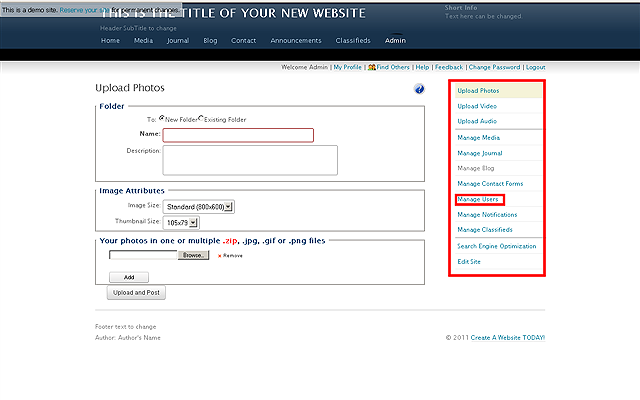
Once you have clicked the link you will see the following screen. Here you can see
who is a member of your site and control their accounts.
NOTE: Clicking the EDIT link will allow you to add information in the form
of a note (shown only to you) about each member.
.png)
Clicking a members picture (all the over to the left) will show you that members
profile.
.png)
Approving a NEW member.
To approve a new member who joined you website you can either do so from the email
you get (which has a link) that says "YOU CAN APPROVE THE USER HERE"
.png)
-or- by logging into your site, going to the ADMIN section and clicking the MANAGE
USERS control link. Next you can click the checkbox that says APPROVED for the member
you want to have access to you website.
NOTE: "PUBLIC" websites mean that ANYONE has access to ALL your
content and can leave comments if they choose.
NOTE: The OPTED OUT checkbox is NOT under you control. This will show who
has decided NOT to allow you to email blast them.
.png)
Clicking the APPROVED checkbox will result in the following conformation screen
being shown. You will need to click the APPROVE button to allow the new member.
NOTE: If you want your users immediately approved without this confirmation,
check the DO NOT SHOW THIS MESSAGE AGAIN checkbox.
.png)
Removing (Blocking) a member
Un-Checking the checkbox will take away a members privileges and they WILL NOT be
allowed to view or comment on your website. You will need to click the BLOCK button
to restrict the user from using your website.
.png)
Email members
You can message all your members at once or just selected members. Click the EMAIL
USERS button. On TOP of the column of members is the select all checkbox which allows
you to mass message ALL the members shown on that page. Click the SEND EMAILS button
to send your message.
NOTE: The amount of members you can email at once is controlled by the network
owner.
NOTE: Each user may opt-out using the link provided in each
email.
.png)
Clicking a members PICTURE from here will show you that members profile WITH that
members e-mail address.
.png)
.png)
Once you have clicked the SEND EMAILS button the progress bar will appear until
the task is done.
.png)
Click the CLOSE button.
.png)
Create a New User
To create a member you will need to click the INVITE NEW USER button. An automatic
message will send to the email address you added for the member which contains the
username and password. You may use the default invitation -or- type a custom message
which will be saved so you can use it again later.
.png)
.png)
Once you are ready to send the invitation click the CREATE NEW USER AND SEND HIM/HER
THE INVITATION link. Check the SEND INVITATION checkbox if you really want to send
the invitation. If you UN-check the same box, the invitation will save but not send,
assuming that you want to use it later.
NOTE: Once the link is clicked the user is created and the email invitation
is sent. Clicking again will result in a message that the account already exist.
NOTE: Click the SEND ME A COPY OF THIS INVITATION checkbox to get a copy
of the invitation in your email box.
.png)
Your Profile
You can also add your profile info to let other know a little more about you or
just to show a picture next to your comments. Click the MY PROFILE link once logged
into your site (its at the top) next to MEMBERS / FIND OTHERS etc. You can also
select to show your profile or not, to other members of your website by clicking
the PRIVACY radio button next to your choice.
.png)
To upload your picture click the BROWSE button, find it then click the UPLOAD button
to add it. You will need to click the SAVE CHANGES control to save the whole thing.
NOTE: Only ONE picture is allowed on a profile but it can be changed at any
time.
.png)